
Screen 5/14 - 5 action screens
Fun photos: pick a photo, say what makes it funny, your assistant handles the caption and story
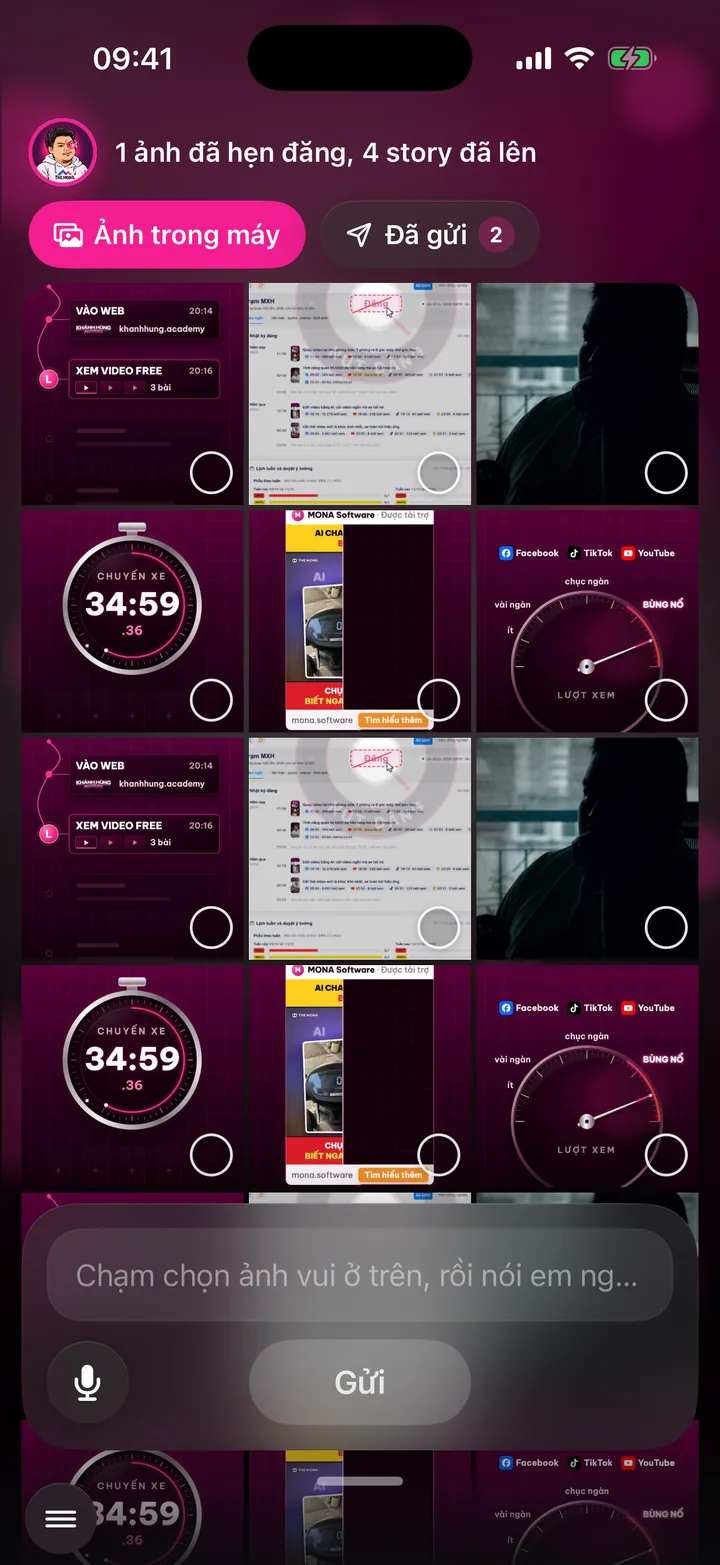

Pick a fun photo on your phone, say in one sentence what makes it funny, tap Send. Your assistant writes the caption, schedules the post and puts it on your story.
What this screen is for
An expert's channel is not only knowledge videos. A fun behind-the-scenes photo makes viewers feel closer to you, and keeps your channel posting on days you haven't recorded.
The Fun photos screen lets you post that kind of content without thinking up a caption. Just pick a photo and say in one sentence what makes it funny.
Your assistant uses exactly what you said as the core of the caption, picks an open slot for the photo post, and puts the photo on the story of your channels.
App demo video
Watch Khánh Hùng open the Fun photos screen in the real app
App demo video - Fun photos chapter, from 5:48
Watch the full video on YouTube
Real users
Real users talk about this feature
Francis Tuấn - Oct 23, 2026
Record, upload to the app, then get on with other work. Peek at the widget now and then to check progress, and an hour later the video is fully edited. So good.
Watch the video on FacebookHow to use it
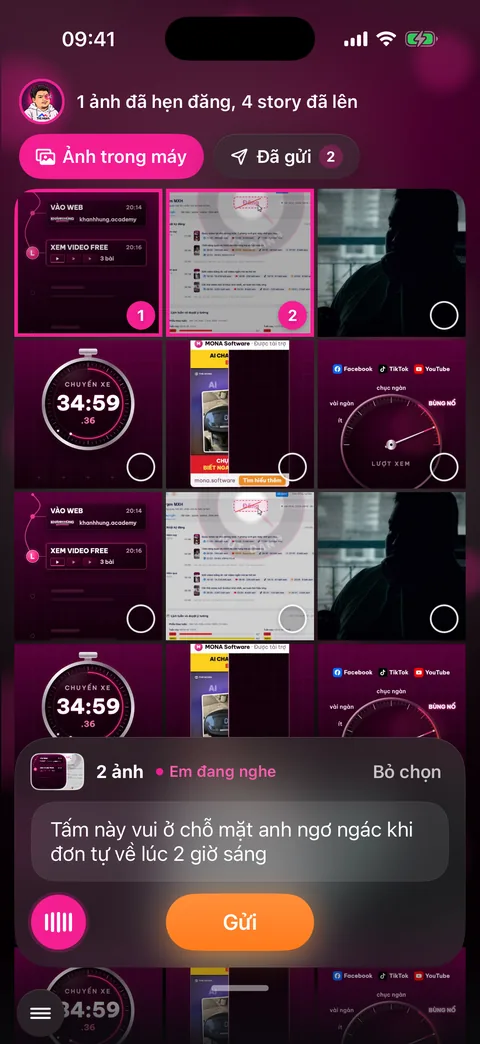
Swipe in from the right edge of the Talk to assistant screen, or open the menu and choose Fun photos. The screen opens on the Photos on phone tab.
Tap to select one or more photos in the grid. Selected photos show their order number. Tap Deselect to start over.
Tap the mic button in the bottom left corner and say what makes the photo funny. The text appears right in the box. Prefer typing? Type in the text box.
Tap Send. The top of the screen shows progress, for example how many photos are uploading to the station, then that your assistant is writing the caption.
Open the Sent tab to see each photo: when it went live or is scheduled, the channels it was posted to, the channels with a story, what you said, and the Suggested caption box.
To change the caption, tap Speak to change caption and say it, or tap Type. Tap View post to open the published post.
Behind the scenes, what the assistant does
The photos go to the MONA AI Station. Your assistant reads the photo and what you said, then writes a caption in your voice, signed by your own assistant.
Your assistant picks an open slot for still photo posts, so fun photos don't crowd out your knowledge videos' time slots.
Photos go up on the story of every channel that has stories. Change the caption by voice and your assistant rewrites it exactly as you asked.
What you get
- Your channel keeps posting even on days you don't record a video.
- Fun captions in your own voice without sitting down to write them.
- Stories go up on all channels at once, so followers see you every day.
Examples by industry
A doctor snaps the whole team eating a rushed lunch between two surgeries. The doctor says “funny because the rice is cold and everyone's still smiling” and taps Send. That evening the photo goes up as a post and a story.
A lawyer snaps a stack of case files up to the chin before a hearing. The lawyer says “funny because this is just one case”, and the assistant writes the caption and schedules the post.
A business owner snaps the office cat lying on the keyboard. He says “our four-legged assistant is reviewing the script”, and the assistant uses exactly that line as the caption.
Want this app under your name?
An assistant with your name, photo and colors, on iPhone and Android.
Implementation process