
Screen 9/14 - Smart management
Video projects: one file per video, so you know which step it's at
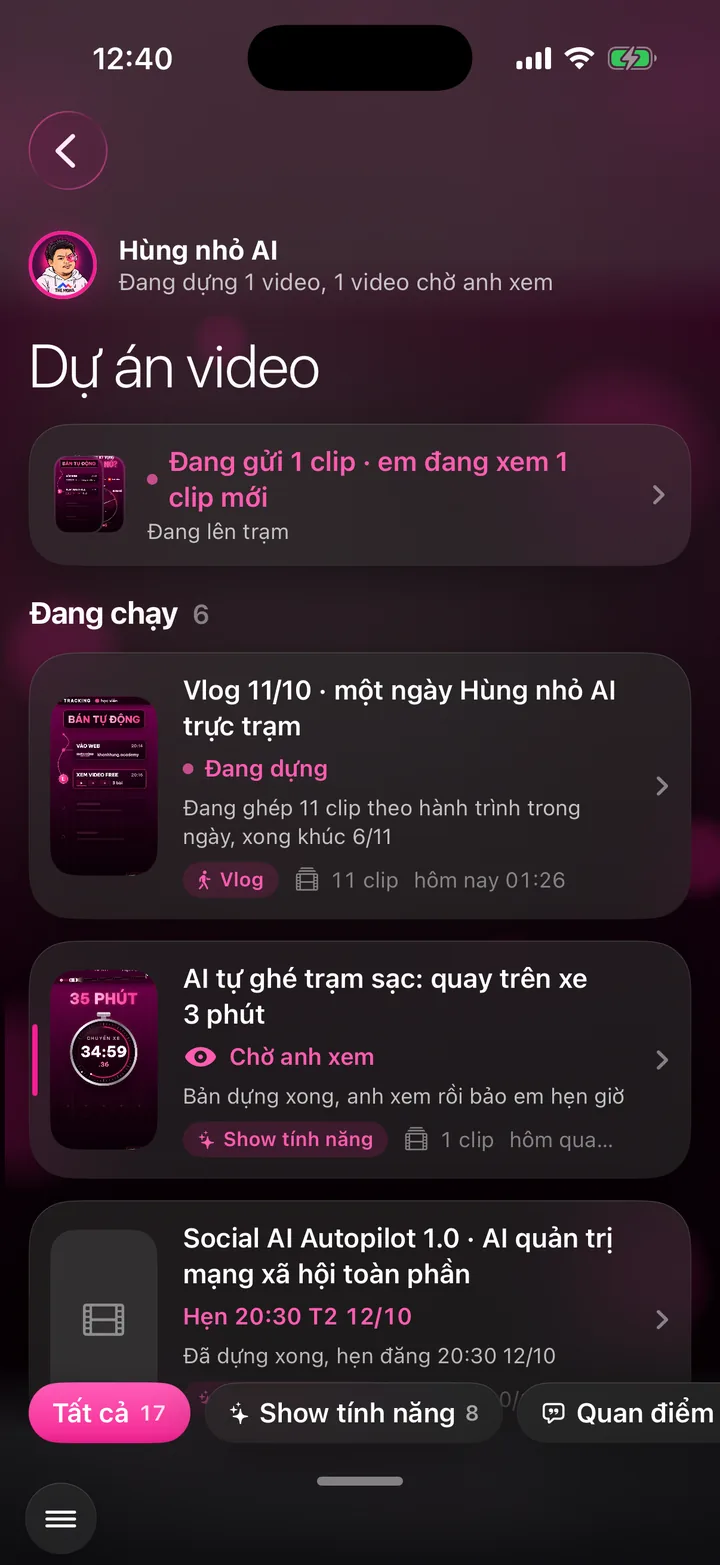

Every video that's editing, waiting for your review, scheduled, or live on how many channels with how many views. Rename, give feedback and add caption notes right inside that video.
What this screen is for
Every time you send a clip, the app opens a video project. This screen shows all of them, which are running and which are done.
Open a project to see that video's full file: the edit, the caption for each channel, the schedule for each channel, the original clip and every step the assistant took.
To change something in a video, you say it right inside that video, with no need to explain which video you mean.
Explainer video
Watch Khánh Hùng explain this feature
 1:08
How to use it
Open the menu in the bottom left corner and choose Video projects.
The Active group sits on top: videos being edited, videos waiting for your review (pink border, eye icon), and stuck videos that need a look. Older videos sit below, grouped by day.
Tap a chip at the bottom such as Vlog, Feature demo or Opinion to filter by video type. The assistant sorts the types itself.
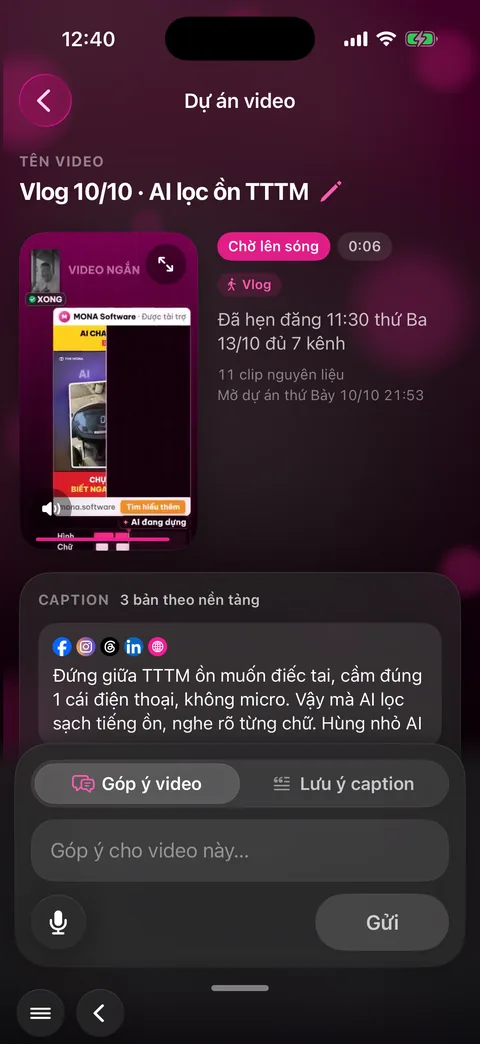
Tap a project. Tap the video name to rename it. Tap the player to watch the edit with sound, and tap the expand button for full screen.
In the bottom bar, choose Video feedback and say what you want: trim the opening, change the music, move the schedule. Choose Caption notes to leave instructions just for the caption.
The assistant's reply appears right under your feedback. Scroll down to Schedule per platform to see each channel's time, whether it's live and how many views it has. Tap a live channel to open the post.
Behind the scenes, what the assistant does
The assistant logs every step in the project's journey: clip received, segments picked, rough cut, edit, caption written, schedule set.
Your feedback goes to the right worker in the AI worker crew: the editor redoes that segment, the writer fixes the caption on channels not yet posted.
The new edit goes through the Brand Director again before it replaces the old one.
View counts for each channel come straight from the platforms and add up on the project card.
What you get
- Know exactly where each video is without asking anyone.
- Fix a video with one sentence and get a clear reply on what was done.
- A library of video files with names, types and view counts, ready to look up anytime.
Examples by industry
The doctor watches the edit and spots an illustration with the wrong drug name, taps Video feedback and says the right name. The assistant replies that it's fixed and re-edited.
The lawyer taps Caption notes and says: “Don't name the specific court.” Captions on channels not yet posted are rewritten.
Before a meeting with the marketing team, the CEO filters by the Opinion chip to review the videos about running the company, with views for each one.
Want this app under your name?
An assistant with your name, photo and colors, on iPhone and Android.
Implementation process