
Screen 3/14 - 5 action screens
Publish video: done recording, one tap and your assistant takes over
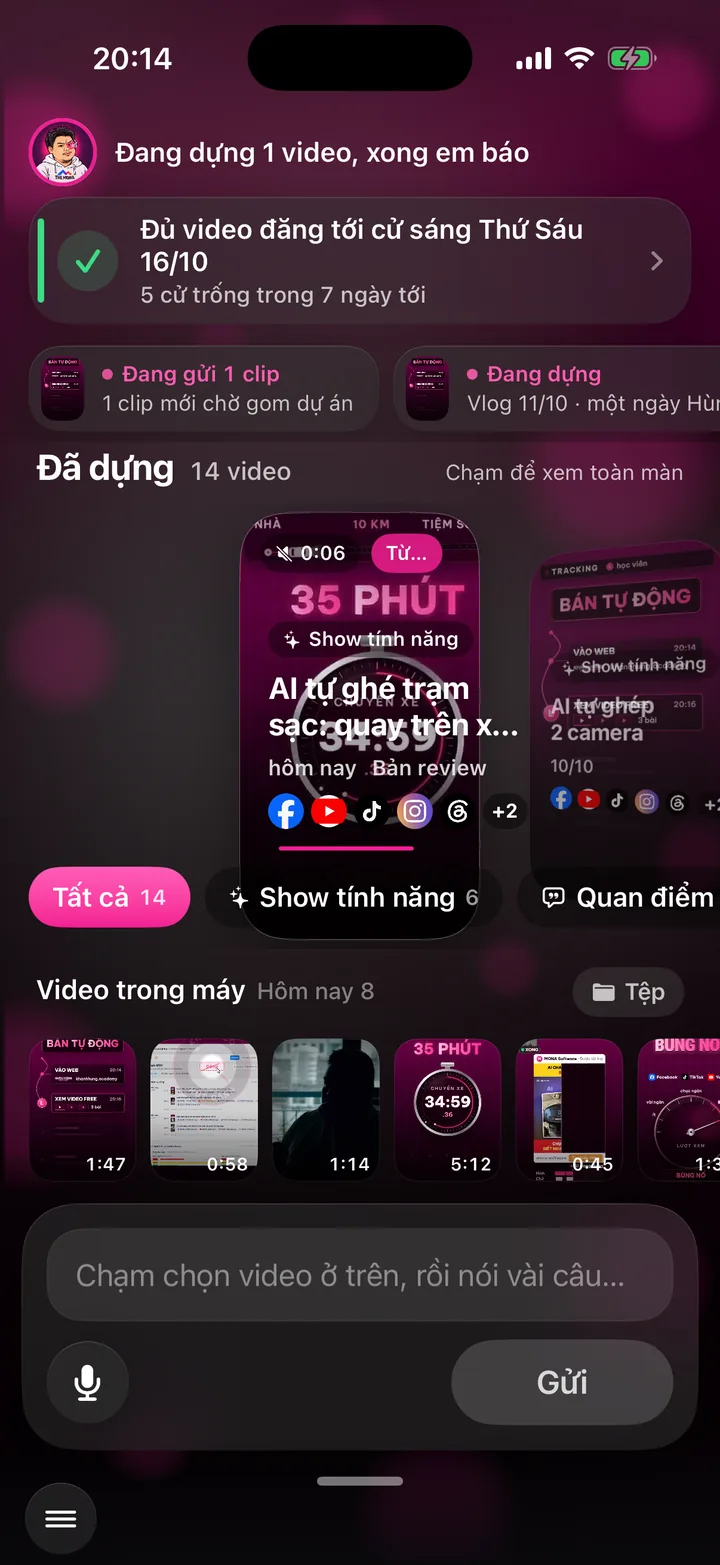
This screen sends clips to AI to edit and publish: you pick a clip, AI edits it into a finished video and posts it to the channels you choose. See how AI edits video
The screen the app opens to. Pick the clip you just recorded, say a few instructions, tap Send. Above is your library of finished videos to look back on.
What this screen is for
This is the first screen you see when you open the app. It has one job: get the clip you just recorded to your assistant as fast as possible.
You don't need to know editing, write captions or open each social network. Pick a clip, say a few instructions, tap Send, and your part is done.
The big box in the middle is the Edited library: finished videos are sent back to your phone in a light version, so you can see the videos you've made.
App demo video
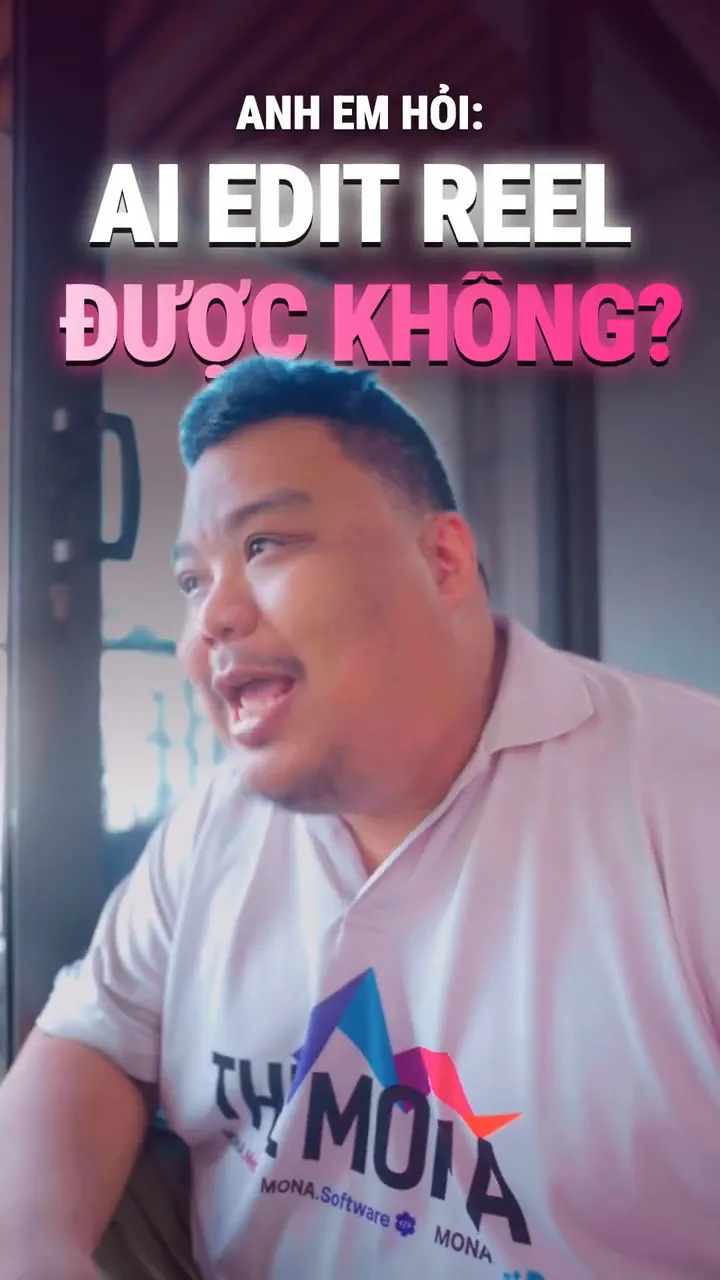
Watch Khánh Hùng open the Publish video screen in the real app
App demo video - Publish video chapter, from 3:54
Watch the full video on YouTube
One video, everywhere
One video, on 16 social networks
and your own website
- Posted via official APIs
- Running on Khánh Hùng's channels - 482 posts on 5 channels
Posted17/17
 Threads
- YouTube
 TikTok
 X
 Reddit
 Pinterest
 Bluesky
- Google Business
- Telegram
- Snapchat
 WhatsApp
- Discord
 Slack
- Your own website
Real users
Real users talk about this feature
Francis Tuấn - Oct 23, 2026
Record, upload to the app, then get on with other work. Peek at the widget now and then to check progress, and an hour later the video is fully edited. So good.
Watch the video on FacebookHow to use it
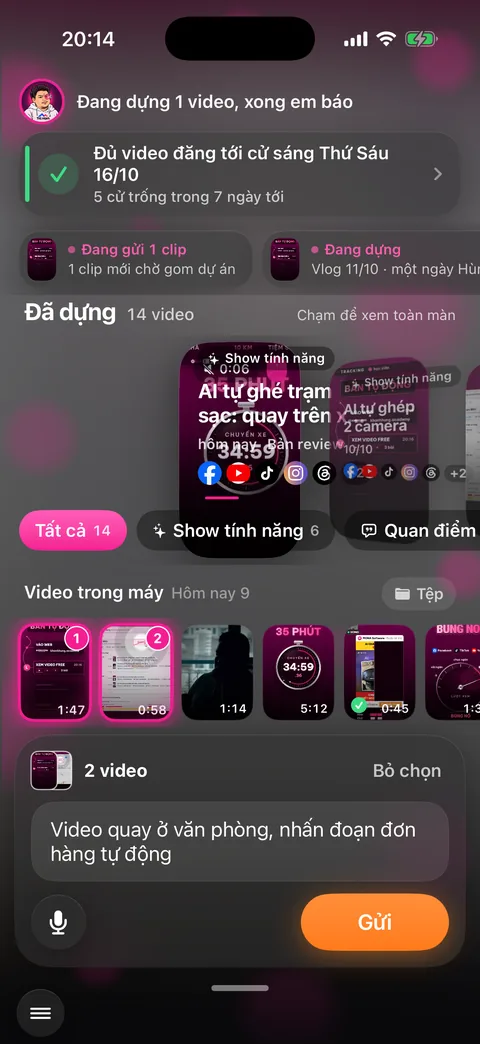
Open the app. The Videos on phone strip in the bottom half shows your new clips, today's first.
Tap the clips you want to send. You can pick several, each shows a number. Press and hold a clip to preview it full screen.
Tap the mic button in the bottom left corner and say what the video is about and which part to highlight. Can't talk right now? Type in the text box.
Tap Send. However many clips you pick, they become one video, and your assistant works out which clips go together.
A progress line appears at the top, like Sending 1 clip, then Editing. You can put the phone away and get on with your day.
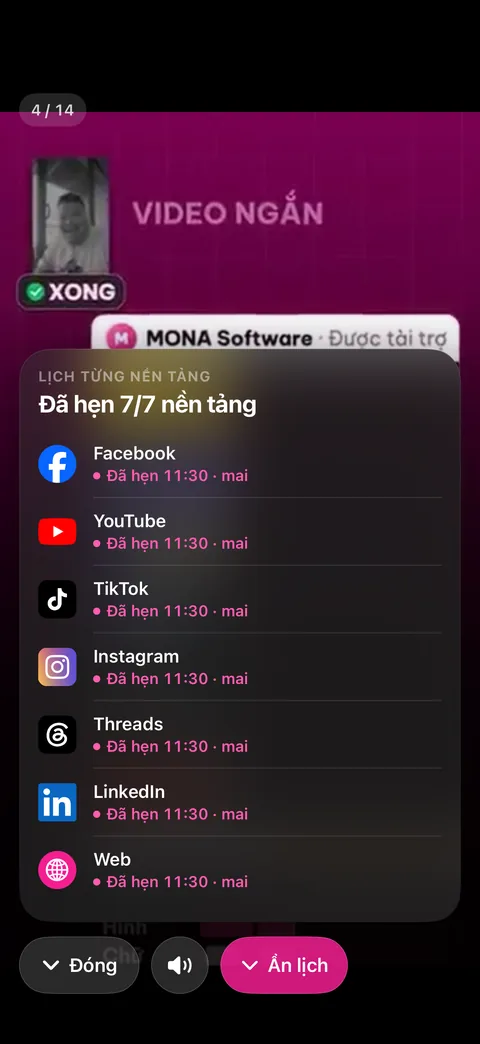
To rewatch an older video, swipe across the Edited strip and tap a video to watch it full screen with sound. Tap Posting calendar there to see which channels it goes to, and when.
Behind the scenes, what the assistant does
The clip is split into pieces and uploaded to MONA AI Station, the AI workstations at MONA running day and night. If the connection drops, the app remembers what was sent and sends the rest.
Your assistant listens to everything you say in the clip and your instructions, then assigns the work to the AI Worker Team: cutting, illustrations, captions, publishing.
Every video goes through Brand Director before it goes out: your own brand identity, the right pace, never that cheap AI-video look.
Once edited, your assistant schedules it for each chosen social network's own prime time.
What you get
- Your part takes about 2 minutes: record, pick, talk, send.
- One finished video goes to every channel you choose, each with its own caption.
- A library of finished videos right on your phone to rewatch or show partners and your team.
Examples by industry
After morning appointments, the doctor records 2 minutes in the clinic on why not to buy antibiotics on your own. Picks the clip, says “highlight the dosage part, add a warning caption”, taps Send and goes back to patients.
Between two meetings, the lawyer quickly records an answer to a question clients often ask: after a divorce, who gets the kids? Says “make that question the title” and sends.
The business owner records 3 clips while walking the warehouse. Picks all 3, says “make it one warehouse vlog, keep the stock numbers part”, and the assistant joins them into one video.
Want this app under your name?
An assistant with your name, photo and colors, on iPhone and Android.
Implementation process