
Screen 2/14 - 5 action screens
Record with a teleprompter: the text scrolls right on screen, so you read as smoothly as a TV host
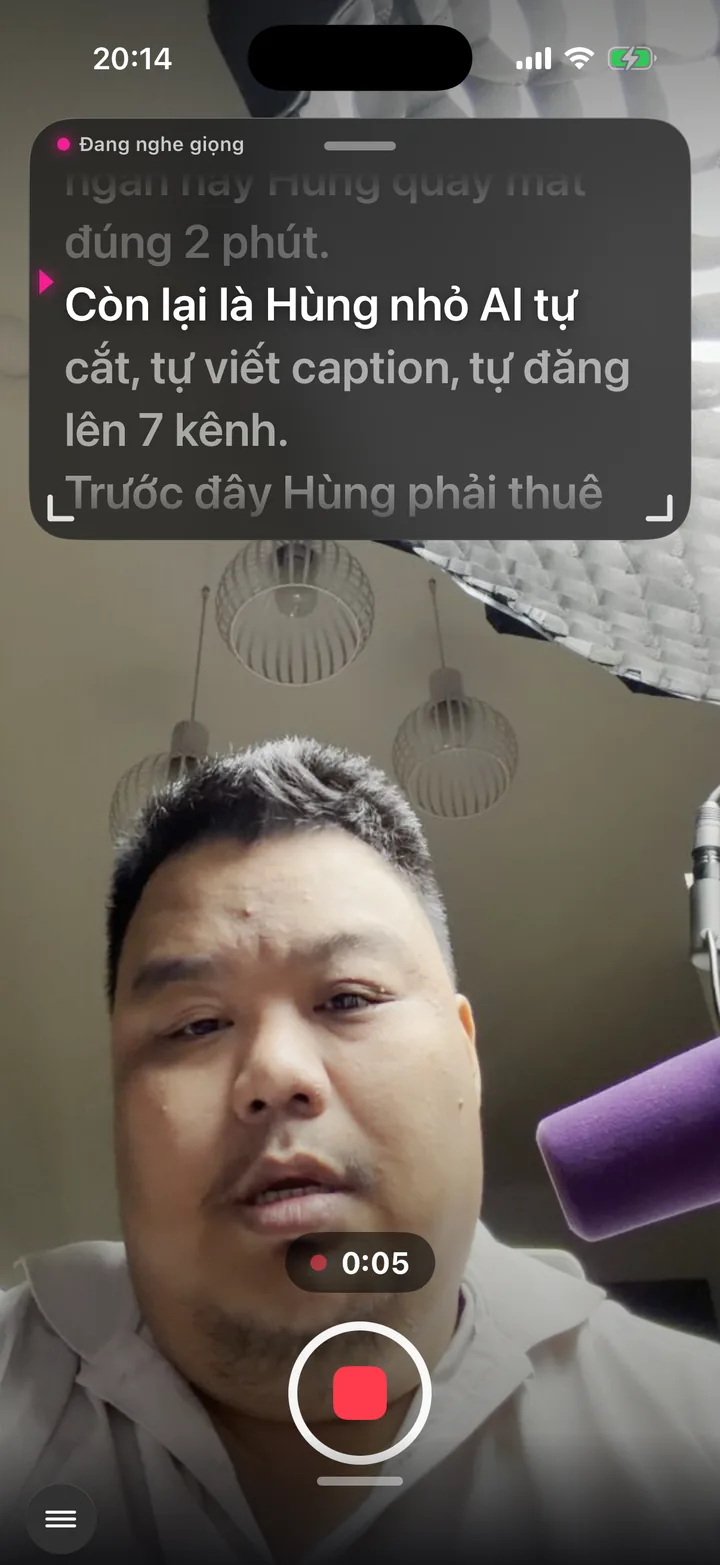
This screen lets you record a tight talk, then send it to AI to edit into a video with explainer visuals, effects and music. See how AI edits video
Record right in the app, with your script scrolling next to the camera like CapCut's teleprompter. When you're done, send it straight to your assistant to edit.
What this screen is for
Many experts talk brilliantly with a client across the table, then forget their words the moment they face a lens. This screen puts the script on screen while you record, like the teleprompter in the CapCut app.
The text box sits right by the front camera, so you read while viewers still feel you're looking straight at them.
No leaving the app, no hunting for files: one button sends the clip straight to your assistant, script included.
Explainer video
Watch Khánh Hùng explain this feature
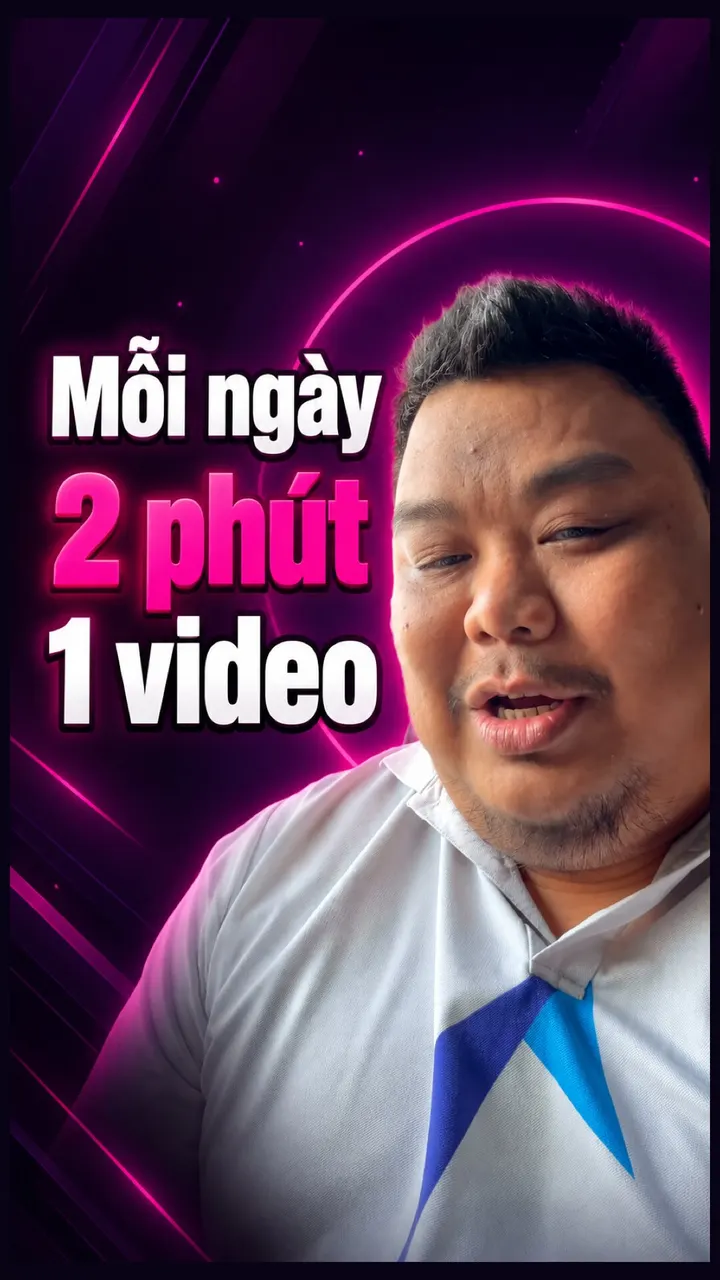 1:52
How to use it
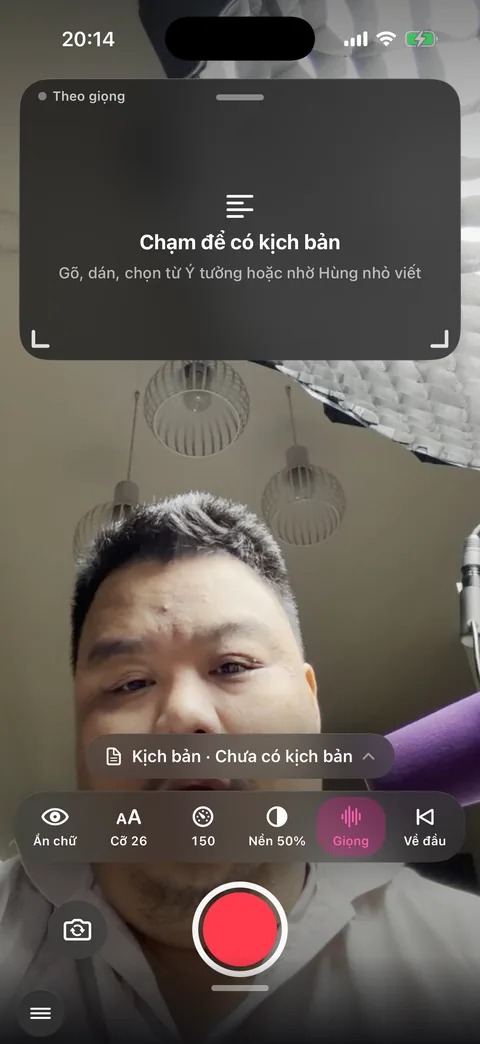
Swipe in from the left edge of the Publish video screen, or open the menu and choose Record video. The front camera is ready, recording vertical in the short-video format.
Tap the text box to open the Script panel. There are 4 ways to get text: paste it, tap the mic and dictate, pick an idea under From Ideas, or type a request and tap Ask assistant to write a script. Then tap Use this script.
Adjust on the bar just above the record button: Size for text size, the speed box for how fast it scrolls, Background to make the box darker or clearer, Hide text when you want a clear view of your face.
Drag the handle at the top of the box to move it. Drag either bottom corner to make it wider or taller.
Turn on Voice and the text follows exactly where you are: slow down and it waits, go off script and it holds still. Turn it off and the text scrolls evenly at your set speed.
Tap the round red button at the bottom center. The app counts down 3 seconds before recording, with a timer right on the button. Tap again during the countdown to cancel.
Tap the text to pause or resume. While paused, drag up or down on the text to find the part you want to reread. The To top button jumps back to the first line.
Tap the square button to stop. The clip saves to Photos and the review screen opens. Tap Send to Hùng nhỏ to edit (your app shows your own assistant's name) or Record another take.
In-app teleprompter vs. a standalone teleprompter
Standalone teleprompter
- A glass pane in front of the lens, text projected from a tablet
- Needs a tripod and a fixed setup
- Needs a person or a remote to set the scroll speed
- After recording, copy files to the editing computer
In-app teleprompter
- Text sits right by the phone's front camera
- All you need is the phone in your hand
- Turn on Voice and the text follows your speech
- One tap after recording sends it to AI for editing
A standalone teleprompter suits a studio and scripts that run for pages. For a clip of about 2 minutes a day, the in-app teleprompter is enough: no extra gear to buy, and the text lives only on the screen, so it never ends up in the video.
Adjust the scroll speed
Words per minute
- 80slowest
- 150default
- 260fastest
On iPhone and Android, Slower and Faster sit right above the record button; each tap changes the speed by 10 words per minute, even while recording. A- and A+ change the text size from 16 to 48. The app remembers your settings for the next take.
Turn on Voice and the text follows exactly where you are reading: pause to think and the text waits, go off script and the text stays put. If the phone can't recognize your voice, the text scrolls evenly at the speed you set, so short lines pass quickly and long lines pass slowly.
While recording, a bar beside the frame shows whether you're talking too fast, just right or too slow, so you can adjust your pace.
Behind the scenes, what the assistant does
The text is only a layer on the screen and never ends up in the video. The video comes out 1080×1920, vertical, with sound, and the front camera doesn't mirror the text on your shirt.
Voice mode uses Apple's Vietnamese speech recognition, takes audio straight from the recording mic, and matches each phrase to the script to know where you are.
When you ask for a script, the request goes to your assistant like a normal message. Once it's written, the text flows into the box on its own.
Hit send and the clip takes the same path as the Publish video screen, with the script as your instructions, then goes through the AI Worker Team and Brand Director like every other video.
What you get
- One take does it: no stumbling, no forgotten points, eyes still on the lens.
- No teleprompter to buy, no second app, no moving files back and forth.
- The script travels with the video all the way to editing, so subtitles and captions match your words.
Examples by industry
The doctor asks the assistant for a 1-minute script on stroke signs that need the ER right away. Reads along with the scrolling text, records in one take, hits send to edit.
The lawyer pastes 5 key points on transferring a land title, sets a slow speed and large text, and records right in the office.
The CEO picks an idea saved last week on the Ideas screen as the script, records a year-end message to customers, and turns on Voice so the text keeps pace with the talk.
Quick answers
Quick answers about the in-app teleprompter
Does the prompter text show up in the video?
No. The text is only a layer on the screen while you record. The video comes out vertical at 1080×1920, with sound, showing only you.
Do I need to buy a standalone teleprompter?
No. The text box sits right by the front camera, so you read the words while viewers still feel you're looking straight at them.
How do I adjust the scroll speed?
Tap Slower or Faster right above the record button; each tap changes it by 10 words per minute, anywhere from 80 to 260 words per minute. Turn on Voice and the text follows what you read, so there's no speed to manage.
If I go off script, will the text jump around?
No. In Voice mode, when you go off script the text stays put, and when you're back on a line from the script it keeps scrolling.
Where does the script come from?
There are 4 ways: paste text you prepared, tap the mic and dictate, pick an idea under From Ideas, or ask the assistant to write the script. Once the assistant is done, the text fills the box on its own.
Does it work on Android and the web version?
Yes. The teleprompter is on iPhone, Android and the web version, with the same 80 to 260 words per minute speed range and text sizes from 16 to 48.
Want this app under your name?
An assistant with your name, photo and colors, on iPhone and Android.
Implementation process